CBEngine
Overview
CBEngine is a highly efficient microscopic traffic simulator. We support real time simulation of traffic system with more than 100,000 intersections and 1,000,000 vehicles.
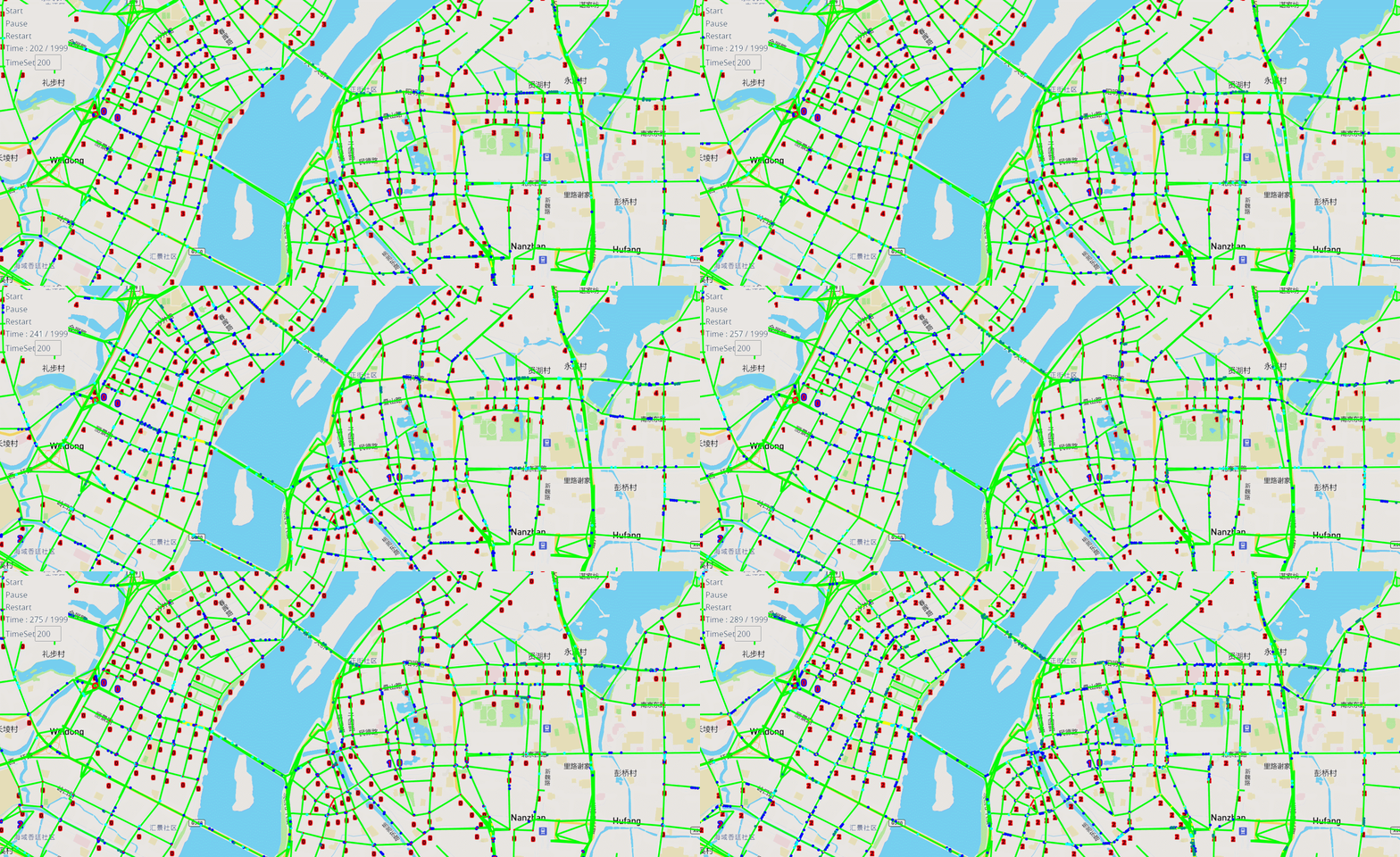
Model of CBEngine
CBEngine is a microscopic traffic simulator, which means it provides modelling for each traffic element independently. As demonstrated in the figure below, vehicles, roads, and traffic signals have their own states which iterate by time based on the action they take.
For example, a vehicle drives in the velocity v_t and with the acceleration of a_t at time t. Its velocity at the next time step v_{t+1} is
v_{t+1} = v_t + a_t * 1
CBEngine iterates the state of every traffic elements with an optimized parallelization architecture , thus making the microscopic traffic simulation more efficient.

More advantages of CBEngine
Various of APIs to operate different traffic elements: roads, traffic signals, vehicles, …
User customization of driving module and routing module.
Pipeline to conduct transformation from map data to road network data file with utility.
Now, use CBEngine to start up your first traffic simulation on large scale traffic system!
Installation
CBEngine is packed as a python package cbengine and can be imported in python with:
import cbengine
CBEngine provides two approaches for installation: with docker and with source code. We highly recommend to use our docker for CBEngine
Using docker
Pull our docker image of CBLab:
docker pull citybrainlab/cbengine:latest
Create a container with the docker image. /path/to/your/folder is the path of folder containing scripts and data for running the simulation:
docker run -it -v /path/to/your/CBLab_files:/CBLab_files citybrainlab/open-engine:latest bash
Now, start up the simulation in the container.
Using source code
Our source code is available on Github for Linux. Run the following command to clone our repo:
git clone https://github.com/CityBrainLab/CityBrainLab.git
To install CBEngine, unzip the file and run the following command in the ‘CBLab/CBEngine/’ folder:
cd ./core
pip install -e ./
The installation will finish in seconds.
For installation with source code, we recommend you to create a new environment as follows:
Enter the folder CBLab/
Run following commands:
conda create -n cblab python=3.8
    conda activate cblab
    pip install -r requirments.txt
Test the installation
We provide our test - Enter the folder ‘CBLab/CBEngine/test/’ - Run the following command: python main.py - If it outputs as follows, the installation is successfully completed:
t: 0, v: 14
t: 1, v: 30
t: 2, v: 43
t: 3, v: 63
t: 4, v: 78
t: 5, v: 92
t: 6, v: 112
t: 7, v: 129
t: 8, v: 147
t: 9, v: 167
t: 10, v: 187
...
Quick Start
Demo of Simulation
We provide a demo to start up the simplest version of our simulation in CBLab/CBEngine/test/ of our source code <>.
The structure of the simulation demo:
|-test
    |-cfgs
        |-config.cfg: configuration file
    |-data
        |-roadnet.txt: road network data file
        |-flow.txt: traffic flow data file
    |-utils.py: utilities of traffic simulation
    |-main.py: demo script
Specifically,
config.cfg assigns the location of roadnet.txt and flow.txt and details some settings for CBEngine.
roadnet.txt and flow.txt are data for simulation.
utils.py includes an utility class Dataloader used in simulation.
Start up the Demo
Run the demo in the environment with CBEngine installed:
python main.py
Understand the Demo
Firstly, we define some arguments for the simulation.
roadnet_file = './data/roadnet.txt'
flow_file = './data/flow.txt'
cfg_file = './cfgs/config.cfg'
dataloader = Dataloader(roadnet_file, flow_file, cfg_file)
These arguments point out the path to the configuration file and two data files.
Then, we create our simulator instance with the configuration file. cbengine.Engine(cfg_file, thread_num) returns a simulator object.
running_step = 300                      # simulation time
phase_time = 30                         # traffic signal phase duration time
engine = cbengine.Engine(cfg_file, 12)  # create a simulator instance
Finally, we start up the simulation. engine.next_step() iterates the engine for one time step The length of one time step is 1 second as default.
Moreover, we can access some information to observe the simulation and operate some traffic elements
engine.get_current_time(): return the current time in the simulation.
engine.set_ttl_phase(intersection_id, phase): change the phase of the traffic signal in the intersection.
engine.get_vehicle_count(): return the current number of vehicles.
print('Simulation starts ...')
start_time = time.time()
for step in range(running_step):
    for intersection in dataloader.intersections.keys():                                            # for each traffic signal
        engine.set_ttl_phase(intersection, (int(engine.get_current_time()) // phase_time) % 4 + 1)  # change the phase of each traffic signal in the roadnet
    engine.next_step()                                                                              # iterate the simulation for one time step
    print(" time step: {}, number of vehicles: {}".format(step, engine.get_vehicle_count()))        # get_vehicle_count() is an API to observe the number of vehicle
end_time = time.time()
print('Simulation finishes. Runtime: ', end_time - start_time)
Data format
Configuration File Format
#configuration for simulator

# Time Parameters
# start time of simulation
start_time_epoch = 0
# the maximum end time of simulation
max_time_epoch = 3600

# Data
# road network data file address
road_file_addr : ./data/roadnet.txt
# traffic flow data file address
vehicle_file_addr : ./data/flow.txt


# Log Trace
# Log is for visualization only.
report_log_mode : normal
report_log_addr : ./log/
report_log_rate = 10
warning_stop_time_log = 100
Normally, four arguments in Time Parameters and Data is common to be modified. You can change the value of these arguments to reassign the setting of your simulation.
Roadnet File Format
The road network file contains the following three data sections.
- Intersection section
Intersection data consists of identification, location and traffic signal installation information about each intersection. A snippet of intersection dataset is shown below.
92344 // total number of intersections
30.2795476000 120.1653304000 25926073 1 //latitude, longitude, inter_id, signalized
30.2801771000 120.1664368000 25926074 0
...
The attributes of intersection dataset are described in details as below.
Attribute Name
Example
Description
latitude
30.279547600
local latitude
longitude
120.1653304000
local longitude
inter_id
25926073
intersection ID
signalized
1
1 if traffic signal is installed, 0 otherwise
- Road section
Road dataset consists information about road segments in the network. In general, there are two directions on each road segment (i.e., dir1 and dir2). A snippet of road dataset is shown as follows.
2105 // total number of road segments
28571560 4353988632 93.2000000000 20 3 3 1 2
1 0 0 0 1 0 0 1 1 // dir1_mov: permissible movements of direction 1
1 0 0 0 1 0 0 1 1 // dir2_mov: permissible movements of direction 2
28571565 4886970741 170.2000000000 20 3 3 3 4
1 0 0 0 1 0 0 1 1
1 0 0 0 1 0 0 1 1
The attributes of road dataset are described in details as below. Direction 1 is <from_inter_id,to_inter_id>. Direction 2 is <to_inter_id,from_inter_id>.
Attribute Name
Example
Description
from_inter_id
28571560
upstream intersection ID w.r.t. dir1
to_inter_id
4353988632
downstream intersection ID w.r.t. dir1
length (m)
93.2000000000
length of road segment
speed_limit (m/s)
20
speed limit of road segment
dir1_num_lane
3
number of lanes of direction 1
dir2_num_lane
3
number of lanes of direction 2
dir1_id
1
road segment (edge) ID of direction 1
dir2_id
2
road segment (edge) ID of direction 2
dir1_mov
1 0 0 0 1 0 0 1 1
every 3 digits form a permissible movement indicator for a lane of direction 1, 100 indicates a left-turn only inner lane, 010 indicates through only middle lane, 011 indicates a shared through and right-turn outer lane.
dir2_mov
1 0 0 0 1 0 0 1 1
every 3 digits form a lane permissible movement indicator for a lane of direction 2.
- Traffic signal section
This dataset describes the connectivity between intersection and road segments. Note that, we assume that each intersection has no more than four approaches. The exiting approaches 1 to 4 starting from the northern one and rotating in clockwise direction. Here, -1 indicates that the corresponding approach is missing, which generally indicates a three-leg intersection.
107 // total number of signalized intersections
1317137908 724 700 611 609 // inter_id, approach1_id, approach2_id, approach3_id, approach4_id
672874599 311 2260 3830 -1 // -1 indicates a three-leg intersection without western approach
672879594 341 -1 2012 339
The attributes of road dataset is described in details as below
Attribute Name
Example
Description
inter_id
1317137908
intersection ID
approach1_id
724
road segment (edge) ID of northern exiting approach (Road_1 in example)
approach2_id
700
road segment (edge) ID of eastern exiting approach (Road_3 in example)
approach3_id
611
road segment (edge) ID of southern exiting approach (Road_5 in example)
approach4_id
609
road segment (edge) ID of western exiting approach (Road_7 in example)
Here is an example 1x1 roadnet roadnet.txt .
5 // intersection data
30 120 0 1 // latitude, longitude, inter_id, signalized
31 120 1 0
30 121 2 0
29 120 3 0
30 119 4 0
4 // road data
0 1 30 20 3 3 1 2
1 0 0 0 1 0 0 0 1 // dir1_mov: permissible movements of direction 1
1 0 0 0 1 0 0 0 1 // dir2_mov: permissible movements of direction 2
0 2 30 20 3 3 3 4
1 0 0 0 1 0 0 0 1
1 0 0 0 1 0 0 0 1
0 3 30 20 3 3 5 6
1 0 0 0 1 0 0 0 1
1 0 0 0 1 0 0 0 1
0 4 30 20 3 3 7 8
1 0 0 0 1 0 0 0 1
1 0 0 0 1 0 0 0 1
1 // traffic signal data
0 1 3 5 7 // inter_id, approach1_id, approach2_id, approach3_id, approach4_id
Flow File Format
Flow file is composed by flows. Each flow is represented as a tuple (start_time, end_time, vehicle_interval, route), which means from start_time to end_time, there will be a vehicle with route every vehicle_interval seconds. The format of flows contains serval parts:
The first row of flow file is n, which means the number of flow.
The following 3n rows indicating configuration of each flow. Each flow have 3 configuration lines.
The first row consists of start_time, end_time, vehicle_interval.
The second row is the number of road segments of route for this flow : k.
The third row describes the route of this flow. Here flow’s route is defined by roads not intersections.
n
flow_1_start_time   flow_1_end_time flow_1_interval
k_1
flow_1_route_0      flow_1_route_1  ...     flow_1_route_k1

flow_2_start_time   flow_2_end_time flow_2_interval
k_2
flow_2_route_0      flow_2_route_1  ...     flow_2_route_k2

...

flow_n_start_time   flow_n_end_time flow_n_interval
k_n
flow_n_route_0      flow_n_route_1  ...     flow_n_route_k
Here is an example flow file
12 // n = 12
0 100 5 // start_time, end_time, vehicle_interval
2 // number of road segments
2 3 // road segment IDs
0 100 5
2
2 5
0 100 5
2
2 7
0 100 5
2
4 5
0 100 5
2
4 7
0 100 5
2
4 1
0 100 5
2
6 7
0 100 5
2
6 1
0 100 5
2
6 3
0 100 5
2
8 1
0 100 5
2
8 3
0 100 5
2
8 5
API
Data API
API |
Returned value |
Description |
|---|---|---|
get_vehicle_count() |
int |
The total number of running vehicle |
get_vehicles() |
list |
A list of running vehicles’ ids |
get_lane_vehicle_count() |
dict |
A dict. Keys are lane_id, values are number of running vehicles on this lane |
get_lane_vehicles() |
dict |
A dict. Keys are lane_id, values are a list of running vehicles on this lane |
get_lane_waiting_vehicle_count() |
int |
A dict. Keys are lane_id, values are a list of waiting vehicles on this lane |
get_vehicle_speed() |
float |
A dict. Keys are vehicle_id of running vehicles, values are their speed |
get_average_travel_time() |
float |
The average travel time of both running vehicles and finished vehicles |
get_vehicle_info(vehicle_id) |
dict |
Input vehicle_id, output the information of the vehicle as a dict |
get_current_time() |
int |
Output the current time as an integer |
get_road_speed_limit(road_id) |
float |
Input road_id, output the speed limit of the road as a float |
get_car_following_params() |
dict |
Output the parameters of the driving module |
get_vehicle_route(vehicle_id) |
list |
Input vehicle_id, output the list of roads in the route |
get_ttl_phase(intersection_id) |
int |
Input intersection_id, output the phase of its traffic signal as an integer |
Operating API
API |
Input type |
Description |
|---|---|---|
set_road_velocity(road_id, speed_limit) |
int, float |
Set the speed limit of a road |
set_car_following_params(params) |
dict |
Set the parameters in the driving module |
set_vehicle_route(routes) |
list |
Set the route for a vehicle |
set_ttl_phase(int) |
int |
Set the traffic signal phase for an intersection |
Load & Save API
API |
Input type |
Description |
|---|---|---|
load_state(snapshot_path) |
string |
Load a snapshot of the simulation |
save_state(snapshot_path) |
string |
Save the current state of the simulation as a snapshot |
Module Customization
An obvious characteristic of CBEngine is that it supports the user customization of two modules used in the simulation: driving module and routing module. We achieve this by abstracting these two modules in two concrete C++ classes and tune the structure of the simulator to make these clases independent. Note that customization is only for CBEngine installed with source code.
To conduct the module customization, we highly recommend you to read the source code of CBEngine, while this involves several classes as inputs and outputs of the module.
Driving Module
Driving module describes how vehicles adjust their driving behaviours according to the traffic conditions in the road, including those vehicles around and traffic signals. In CBEngine, we abstract this module with a class and provide the following guidance to help users implement their own driving modules.
Data
Various data should be taken into consideration when a driver decides the driving behaviours of a vehicle. CBEngine aggregates a lot of data visible to drivers in the real world for the driving modules. For customization, user can design driving modules which make use of it in determining the driving behaviours.
Data |
Type |
Description |
|---|---|---|
dis_to_signal_ |
double |
Distance to the next signal |
signal_remained_time_ |
double |
Next signal green light remained time (Judging green light by signal_can_go_) |
signal_can_go_ |
bool |
Judging green light |
next_signal_ |
const TrafficSignal* |
Information about the next signal |
dis_to_next_car_ |
double |
Distance to the next vehicle in the lane |
next_car_ |
const VehiclePlanned* |
Information about the next vehicle in the lane |
this_car_ |
const VehiclePlanned* |
Information about this car |
left_next_car_ |
const VehiclePlanned* |
Information about the next car in the left lane, similar in the right lane. |
left_last_car_ |
const VehiclePlanned* |
Information about the last car in the left lane, similar in the right lane. |
dis_to_left_next_car_ |
double |
Distance to the next vehicle in the left lane, similar in the right lane. |
dis_to_left_last_car_ |
double |
Distance to the last vehicle in the left lane, similar in the right lane. |
num_of_car_to_light_ |
std::vector<int> |
Number of car in front of this car to signal |
next_signal_direction_ |
Direction |
The status of the car at the next signal light (turn left, turn right, etc) |
Template
We provide a template for users to implement their own driving modules. To customize the driving module, we mainly need to implement the ConductDriving function, which takes aforementioned data as inputs and returns a vector of VehicleAction.
#include "vehicle.h"

/*
 * head file
 */
class DrivingModule {
private:
    const DrivingModule* data_;
    ...
public:
    DrivingModule(const DrivingModule* data):data_(data){};         // obtain all the data above
    std::vector<VehicleAction> ConductDriving();                    // this is the virtual function to implement, do not rename this function
    ...
}

/*
 * source file
 */
std::vector<VehicleAction> DrivingModule::ConductDriving() {
    double dis_to_next_car = data_->dis_to_next_car_;
    ...
}
Example
See source code in /src/modules/driving.cc
Routing Module
Data
Data |
Type |
Description |
|---|---|---|
roadnet_ |
RoadNet |
A vector of intersections and a graph of the roadnet |
vehicle_group_ |
VehicleGroup |
Including OD of all vehicles and the road all vehicles currently on |
Template
We provide a template for users to implement their own driving modules. To customize the routing module, we mainly need to implement the ConductRouting function, which observes the overall conditions of the traffic and directly modify the route of the vehicle.
#include "routing.h"

/*
 * head file
 */
class RoutingModule {
private:
    const RoutingData* data_;
    ...
public:
    RoutingModule(const RoutingModule* data):data_(data){};         // obtain all the data above
    void ConductRouting(std::vector<VehicleInfo> &vehicle);         // this is the virtual function to implement, do not rename this function
    ...
}

/*
 * source file
 */
void RoutingModule::ConductRouting(std::vector<VehicleInfo> &vehicle) {
    data_->compacted_graph_->FindShortestPath(from_id, to_id, is_spfa);
    ...
}
Example
See source code in /src/modules/routing.cc.
Deploy the Customized Modules
Cover the driving and routing modules in /src/modules/driving.cc and /src/modules/routing.cc. After that, build the project as the aforementioned installation guidance.
Visualization
CBEngine makes use of yarn for its visualization. The user interface is available on Google Drive.
Install the User Interface
Download the file from Googld Drive and unzip it. Install yarn according to the instruction. For installation in Windows, simply run the following command.
yarn
Obtain Visualization Records
To visualize the simulation, record files are required. Add the following code line in your simulation loop.
engine.log_info(os.path.join(log_path, 'time{}.json'.format(int(engine.get_current_time()))))
A correct sample is as follows.
import cbengine

cfg_file = './config.cfg'
intersections = [1, 2, 3, 4, 5, 6]
LOG_ADDR = './log' # can be modified

running_step = 300
engine = cbengine.Engine(cfg_file, 12)
for step in range(running_step):
    engine.log_info(os.path.join(LOG_ADDR, 'time{}.json'.format(int(engine.get_current_time()))))
    for intersection in intersections:
        engine.set_ttl_phase(intersection, (int(engine.get_current_time()) // 30) % 4 + 1)
    engine.next_step()
Make sure that report_log_addr in your configuration file is an available address, consistent with the LOG_ADDR in the code, then run the simulation script. After the simulation ends, there will be three types of files in the report_log_addr: lightinfo.json, roadinfo.json, timeX.json (X is the time). To visualize these records, move them to ui/src/log in the downloaded user interface.
Boot the Visualization
Before booting the user interface, modify this.maxtime in ui/src/index.js (line 14) to the maximum time of your records. After that, run the following command in ui/ to boot the user interface for visualation:
yarn start
yarn will then wake up a window to visualize the simulation.